

Your Knowledge Bases
The Knowledge Base page shows all your KBs on the left. Click any KB to see its documents on the right.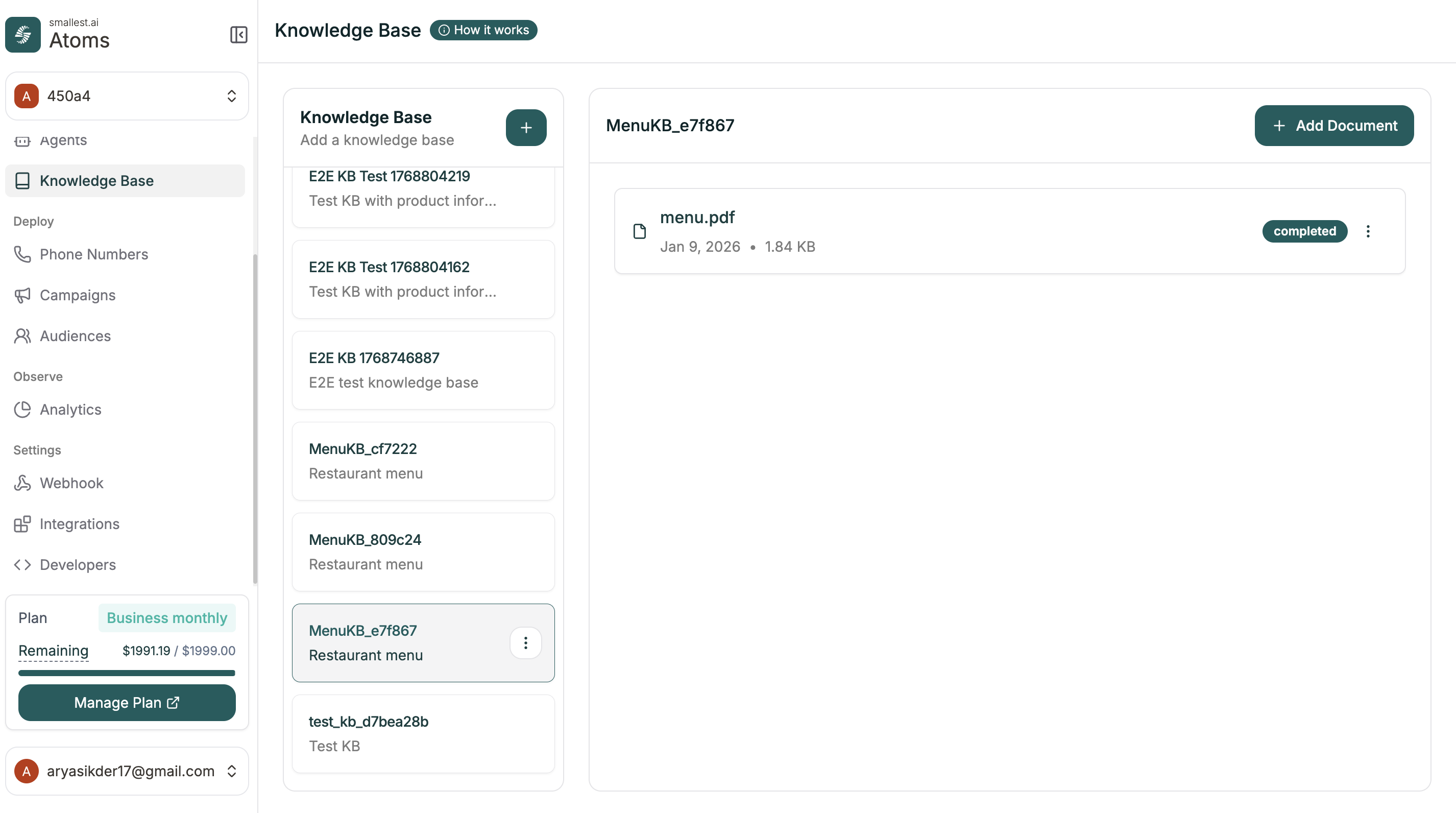
Creating a Knowledge Base
Click the + button next to “Knowledge Base” to create a new one.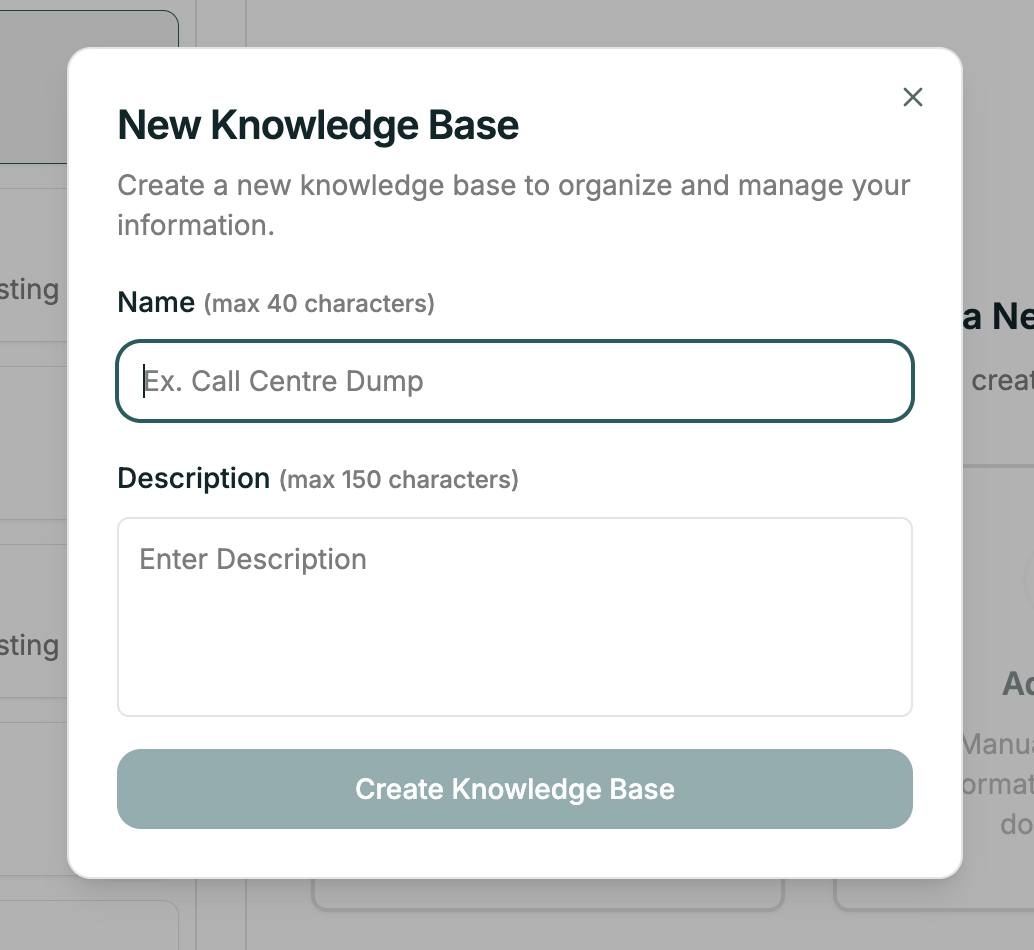
| Field | Description |
|---|---|
| Name | Descriptive name (max 40 characters) |
| Description | Optional notes about this KB (max 150 characters) |
Adding Documents
Once your KB is created, click + Add Document to add content.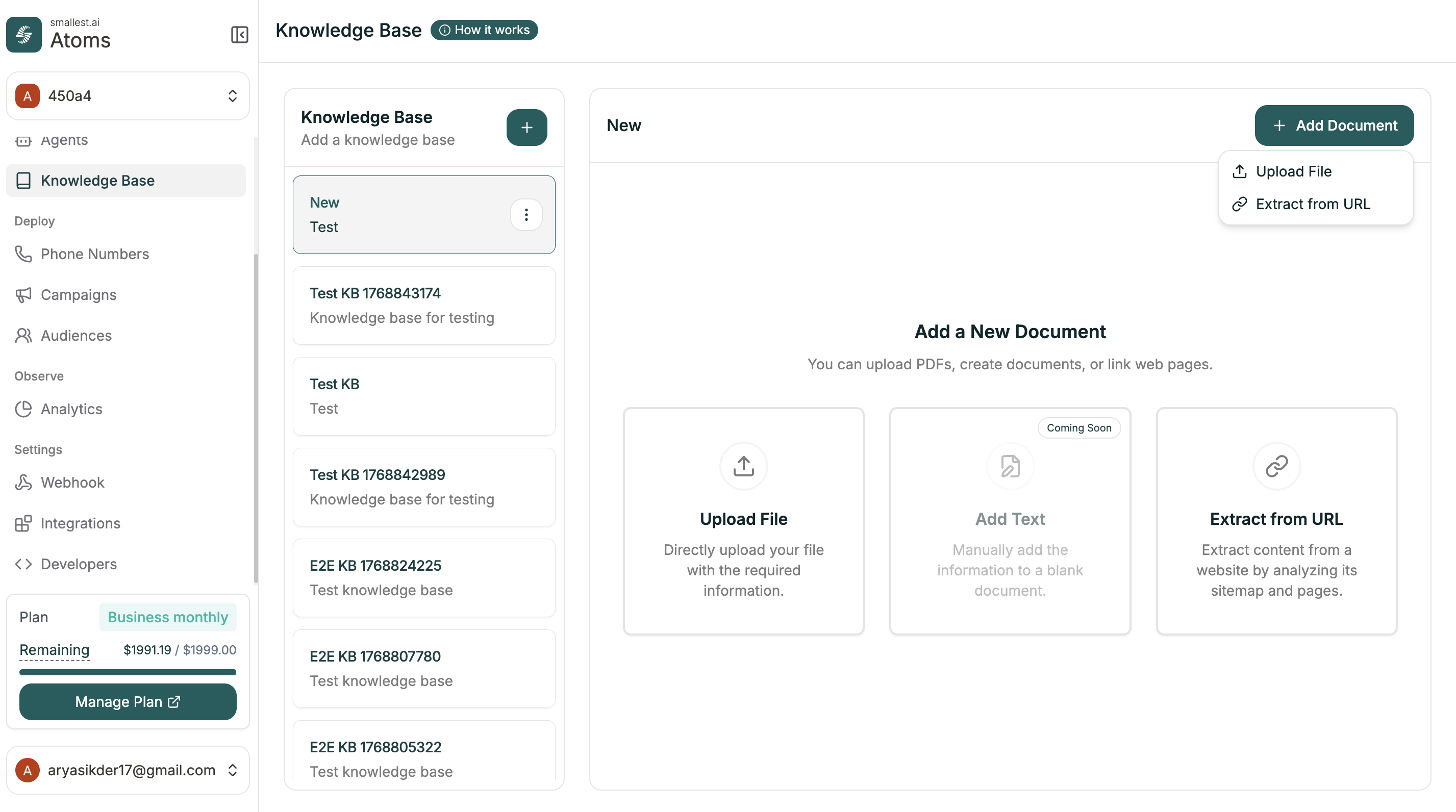
| Option | What it does |
|---|---|
| Upload File | Upload PDFs and documents directly |
| Extract from URL | Pull content from a website by analyzing its sitemap |
| Add Text | Coming Soon — manually add text |
Connecting to Your Agent
Once you have a Knowledge Base with content:- Open your agent in the editor
- Go to Configuration Panel (right sidebar)
- Toggle Knowledge Base on
- Select your KB from the dropdown
Tips
Keep content current
Keep content current
Outdated information leads to wrong answers. Review and update regularly — especially policies, pricing, and procedures.
Structure for search
Structure for search
Use clear headings and concise paragraphs. Q&A format works well because it matches how callers actually ask questions.
Quality over quantity
Quality over quantity
Focused, relevant content retrieves better than massive document dumps. Don’t upload everything — upload what matters.
Test after uploading
Test after uploading
Ask your agent questions that should use the new content. Verify it finds and uses the right information.
Related
Variables
Dynamic values in conversations
API Calls
Connect to external services