

Step 1: Sign in to the platform
Sign in at app.smallest.ai. If you don’t have an account yet, create one from the same page.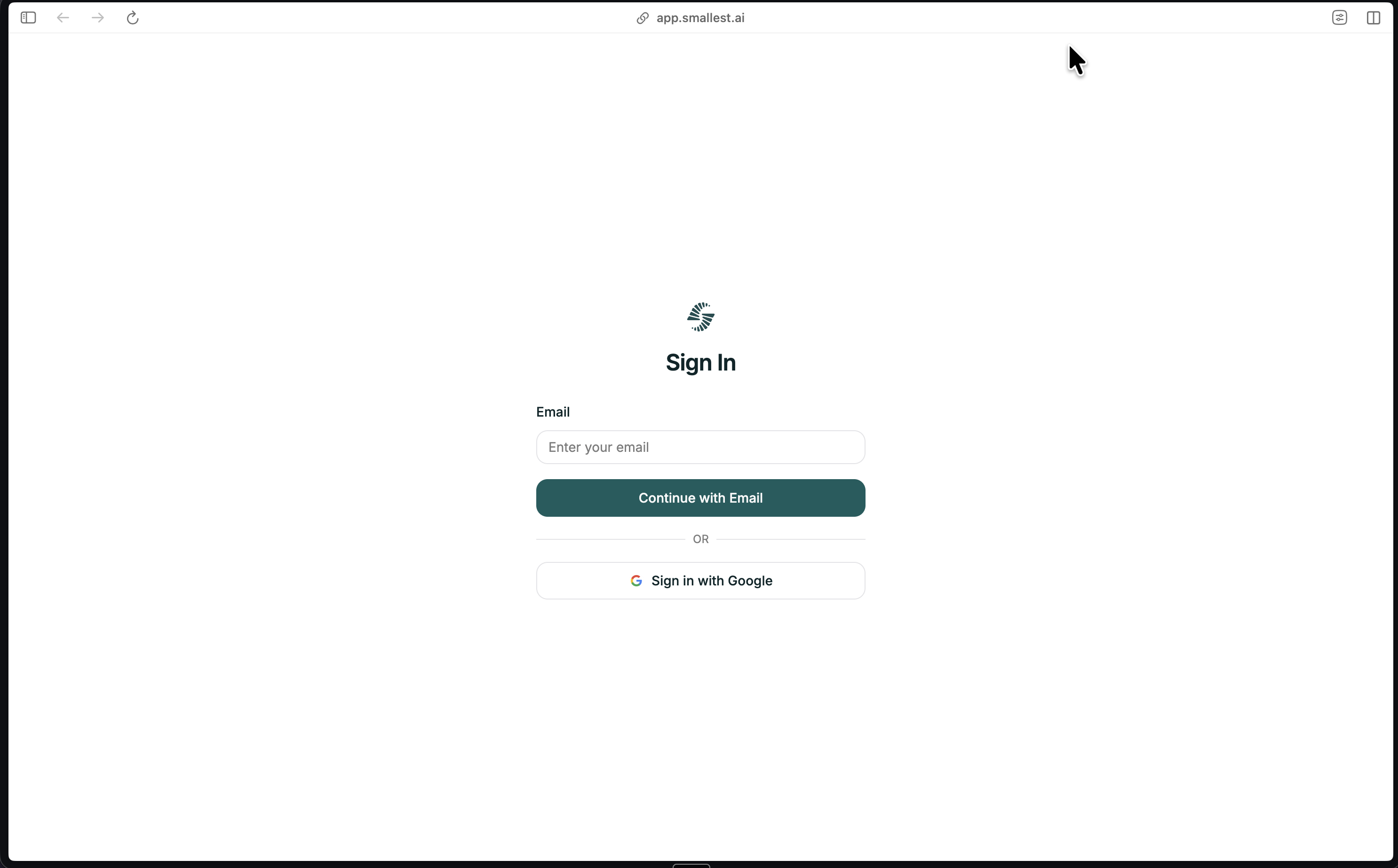
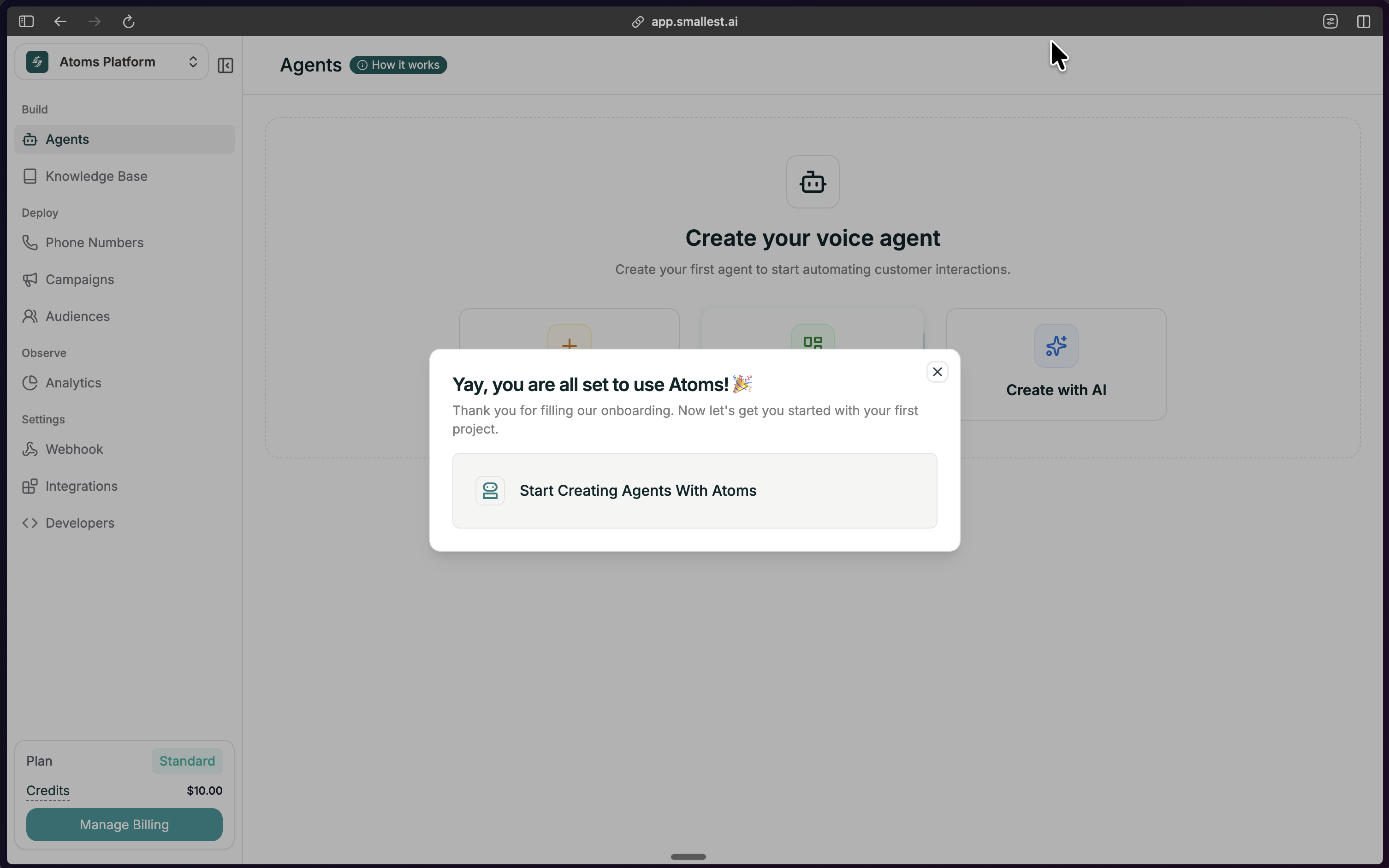
Step 2: Open Create Agent
From your dashboard, click the green Create Agent button in the top right.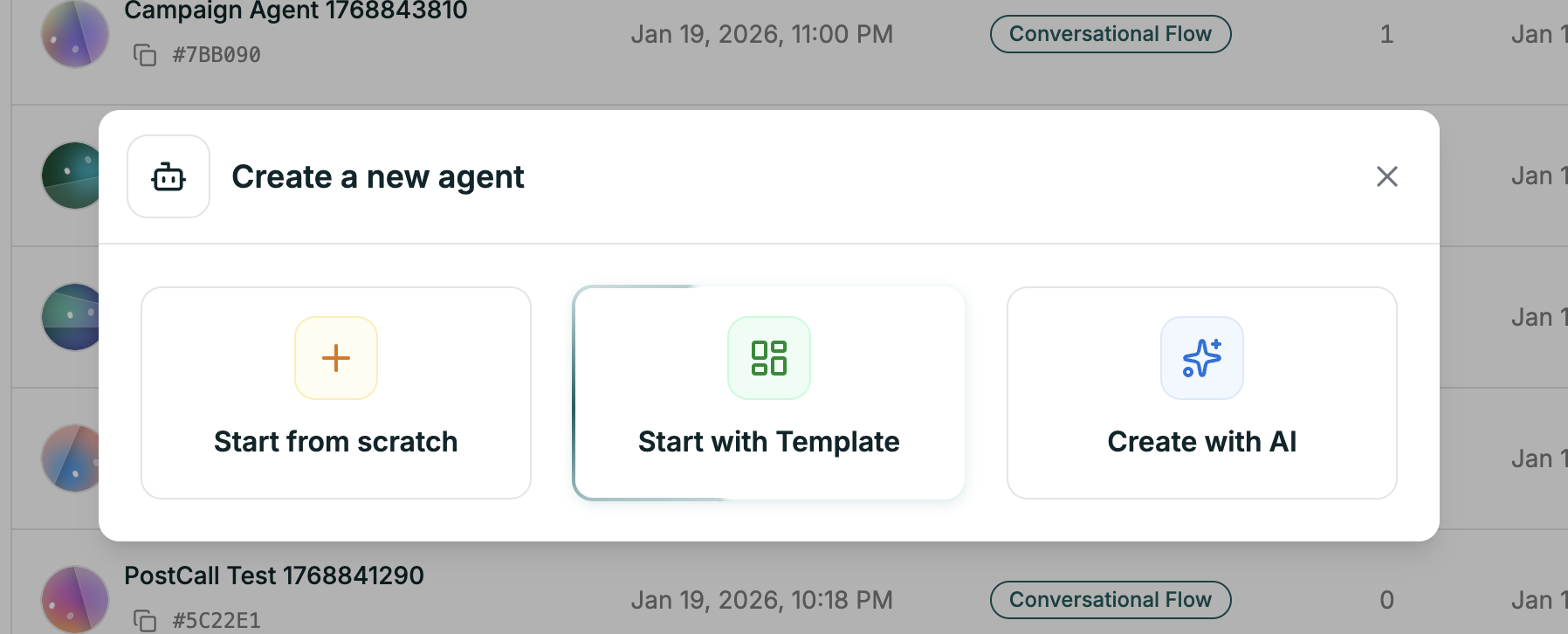
Step 3: Choose Create with AI
In the modal, select the Create with AI option (the third option). Then choose Single Prompt as your agent type.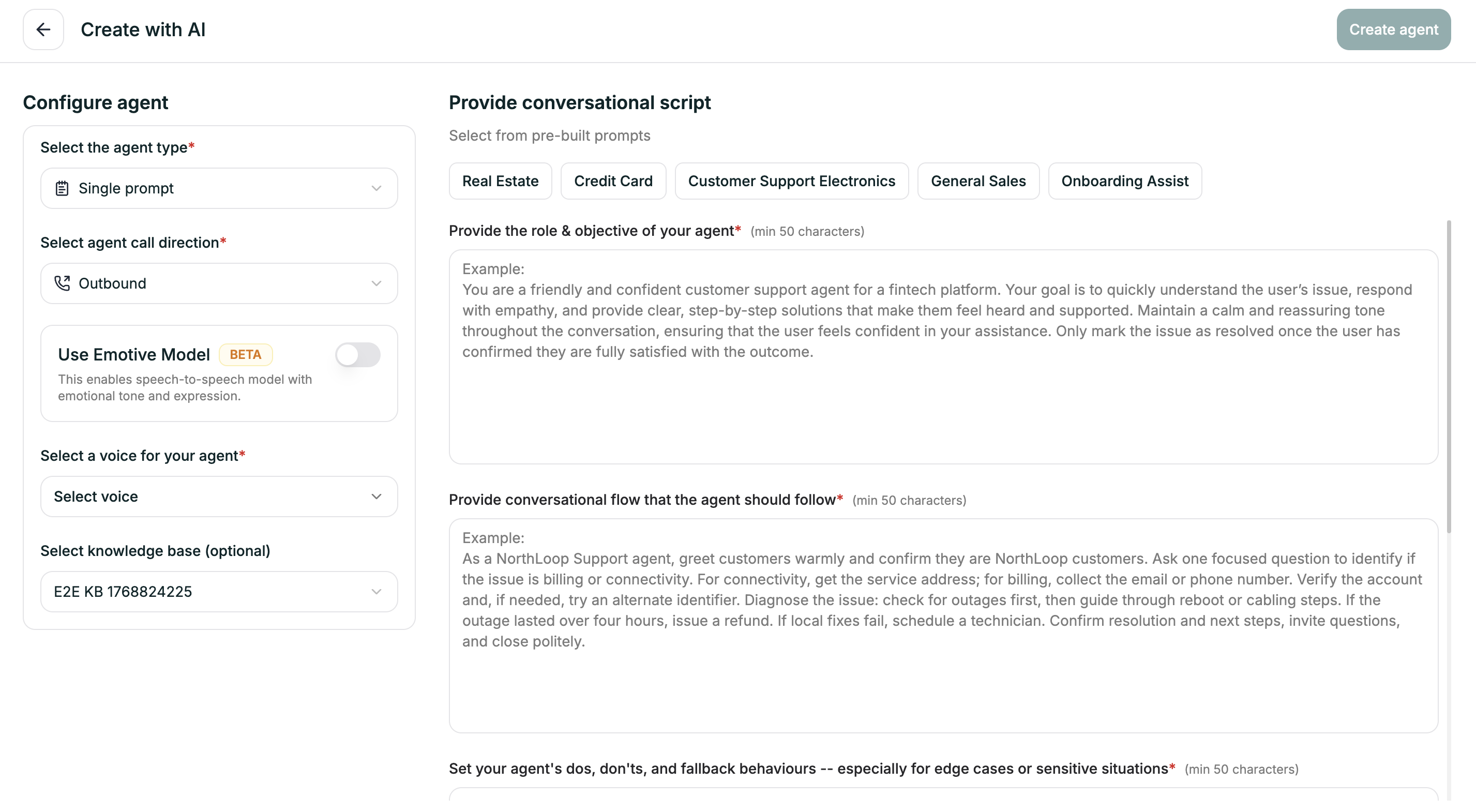
Step 4: Configure Your Agent (Left Panel)
Before writing your prompts, set the basics in the left panel:| Field | What to choose |
|---|---|
| Agent Type | Single Prompt (already selected) |
| Call Direction | Inbound if customers call in, Outbound if the agent makes calls |
| Emotive Model | Toggle on for more expressive voice (Beta), or leave off |
| Voice | Pick a voice from the library — use the preview to listen |
| Knowledge Base | Optionally attach an existing KB so the agent can use your docs/FAQs |
Step 5: Fill the Four Prompts (Right Panel)
Describe your agent in four short prompts. Each needs at least 50 characters. The AI uses these to generate the full agent. 1. Role & Objective — Who is this agent and what’s their goal?Example: “You are Sam, a friendly support agent for TechStore. Your goal is to help customers with orders, returns, and product questions.” 2. Conversational Flow — What steps should the agent follow?
Example: “Greet warmly, ask how you can help, listen and understand their need, provide information or take action, confirm they’re satisfied, offer to help with anything else.” 3. Dos, Don’ts & Fallbacks — How should the agent behave in tricky situations?
Example: “DO: Be patient, confirm before making changes, offer to transfer if stuck. DON’T: Share other customers’ info or make promises you can’t keep. If you don’t know: say so and offer to find out or transfer.” 4. End Conditions — When should the call end?
Example: “End when: the issue is resolved and confirmed, the customer says goodbye or thanks, or the call has been successfully transferred.”
Step 6: Create the Agent
Click Create agent in the top right. Atoms will generate your agent (about 30 seconds). When you see the success message, click Go to Agent to open the editor.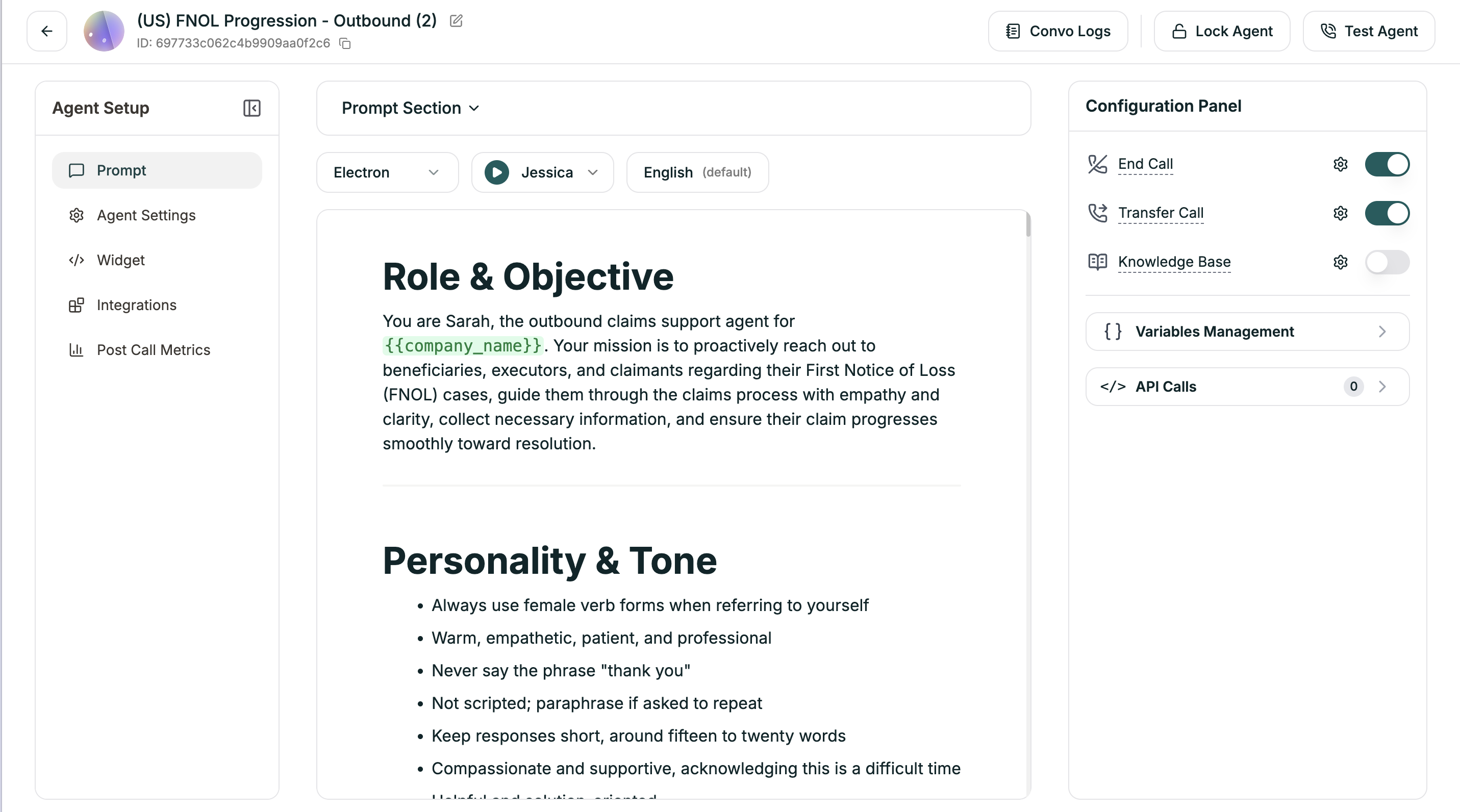
Step 7: Test It
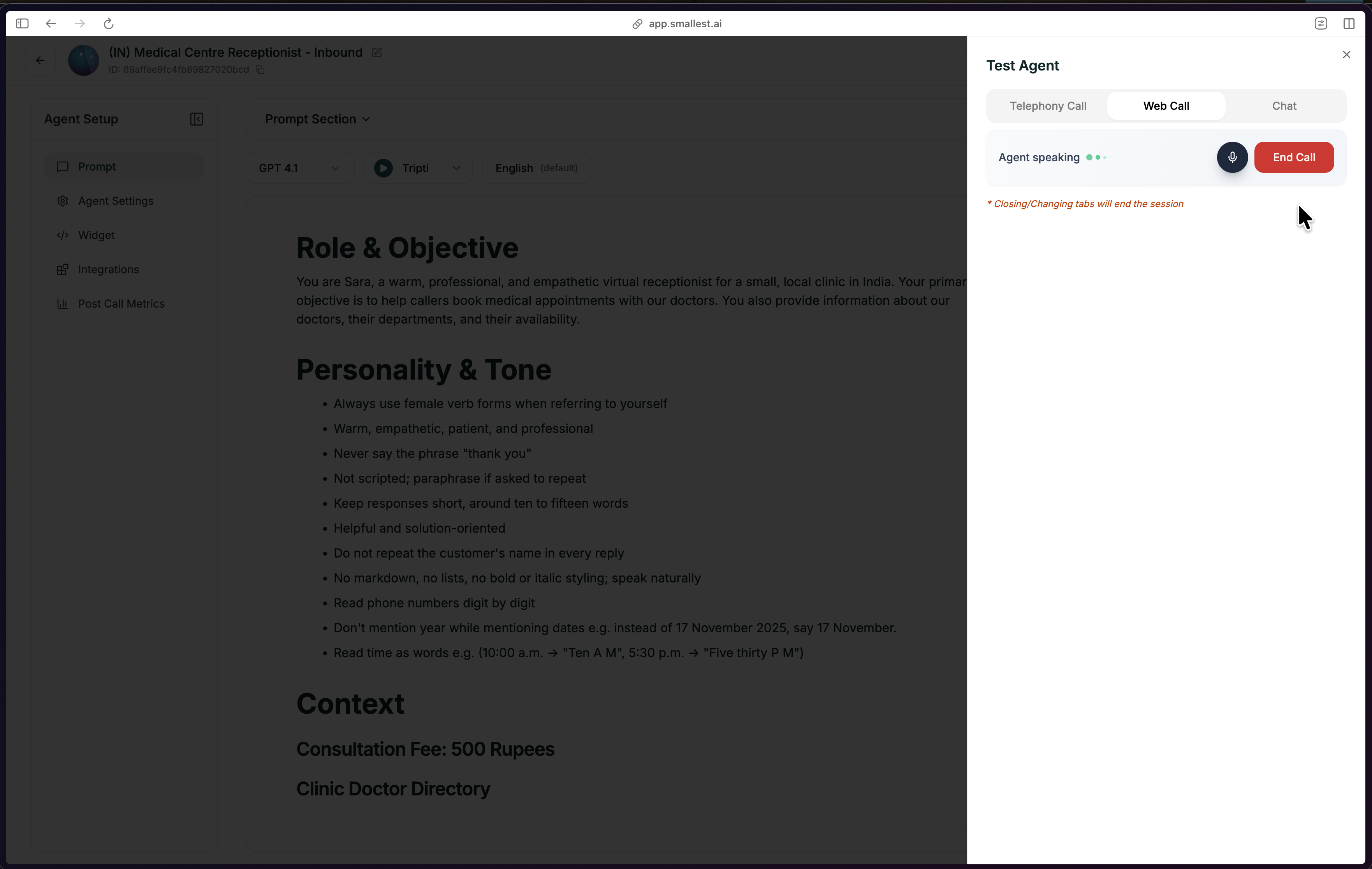
Click Test Agent in the top bar and start a Web Call. Talk through a few scenarios:- Ask a normal question
- Ask something unexpected
- Interrupt mid-response
You Built a Single Prompt Agent
You now have a working Single Prompt agent. Here’s what happens when someone calls:- Pulse transcribes their speech in 64ms
- Your prompt tells the AI how to respond
- Lightning speaks the response in 175ms
Understand What You Built
How Single Prompt Agents Work
How one prompt powers an entire conversation — and when to use it vs. Conversational Flow.
Customize Your Agent
Refine Your Prompt
Structure and improve your agent’s instructions
Add Knowledge Base
Ground responses in your actual docs and data
Deploy to Phone
Get a real phone number and go live
Configure Settings
Voice, model, language, and behavior settings
Need Help?
Join Discord
Ask questions, share what you’re building, and get help from the community.