

Your Audiences
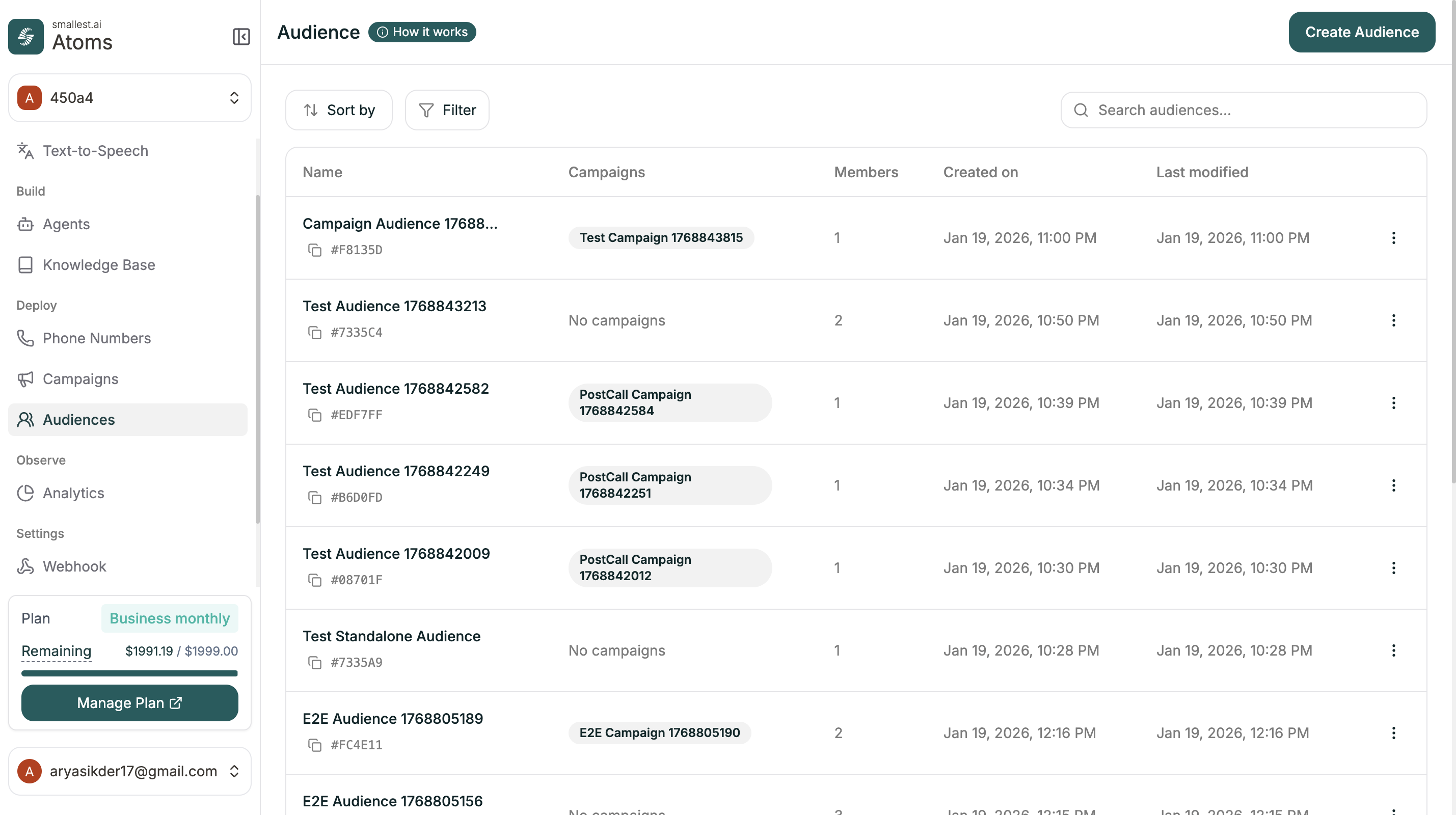
| Column | Description |
|---|---|
| Name | Audience name and ID |
| Campaigns | Campaigns using this audience |
| Members | Number of contacts |
| Created on | When the audience was created |
| Last modified | Last update time |
| Actions | Three-dot menu for options |
- Created on
- Total members
- Last modified
- All Audiences
- With Campaigns
- Without Campaigns
Creating an Audience
Click Create Audience (green button, top right) to start a three-step process.Upload CSV
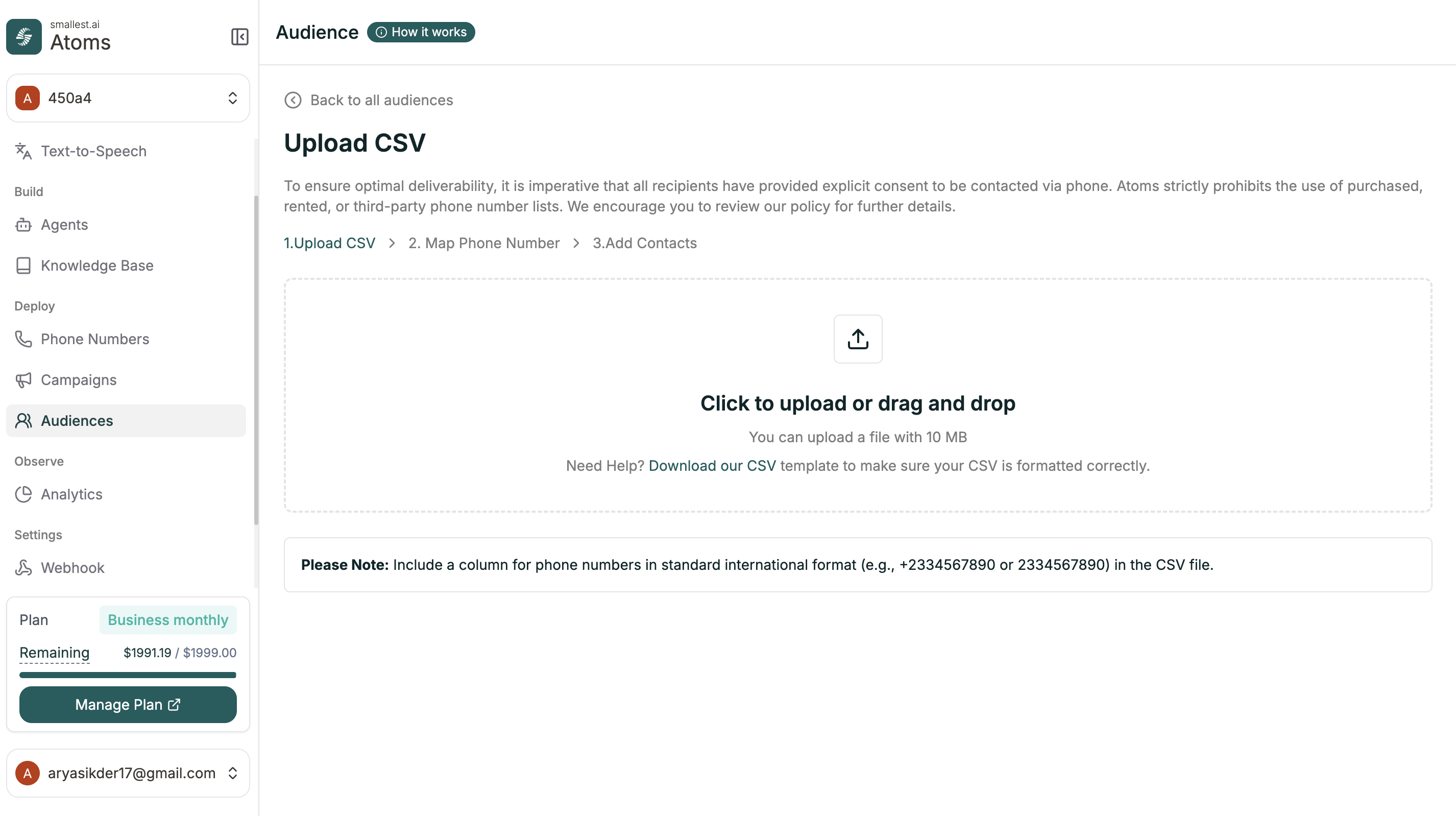
+919999900000 or 919999900000).Map Phone Number
Tell us which column contains the phone numbers.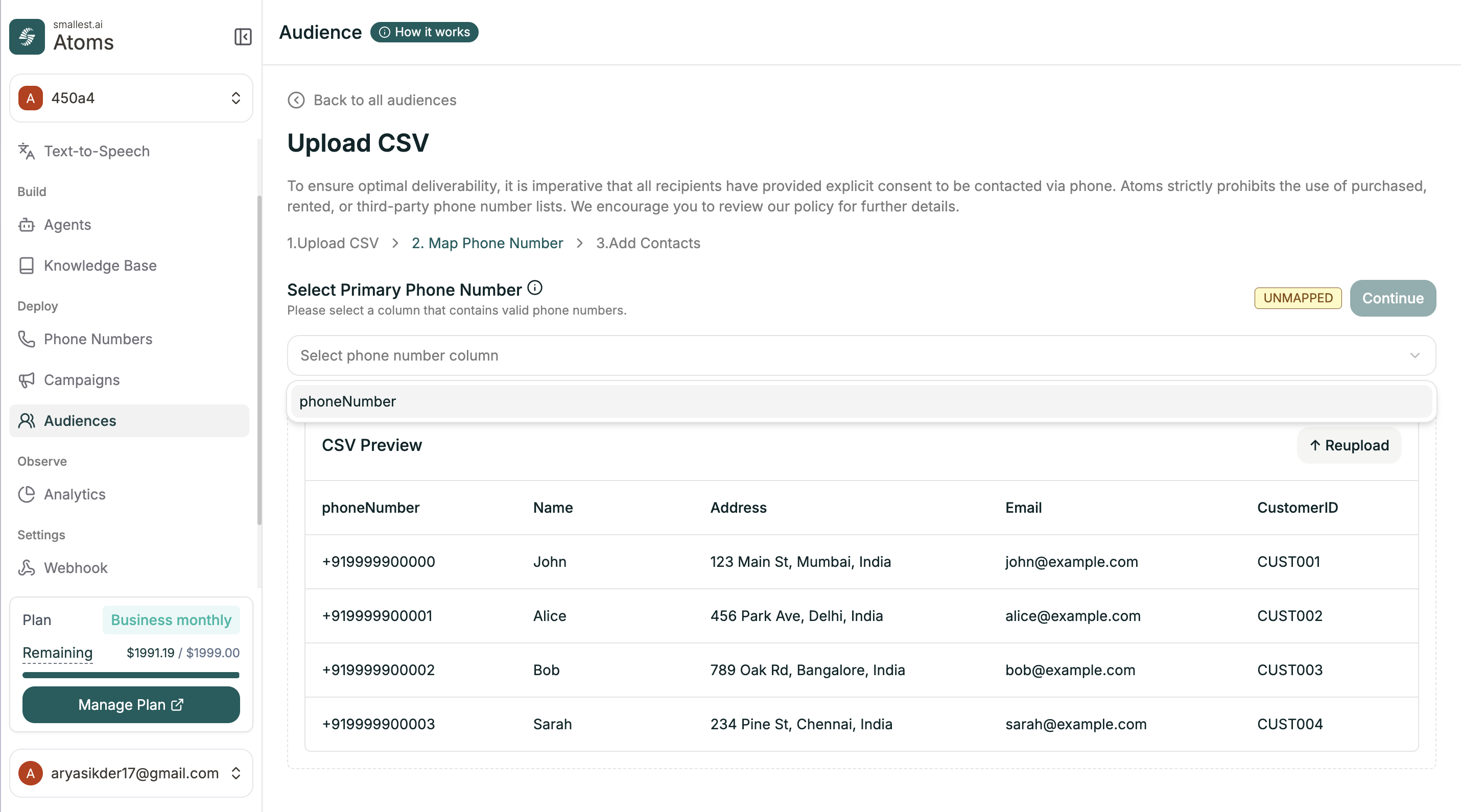
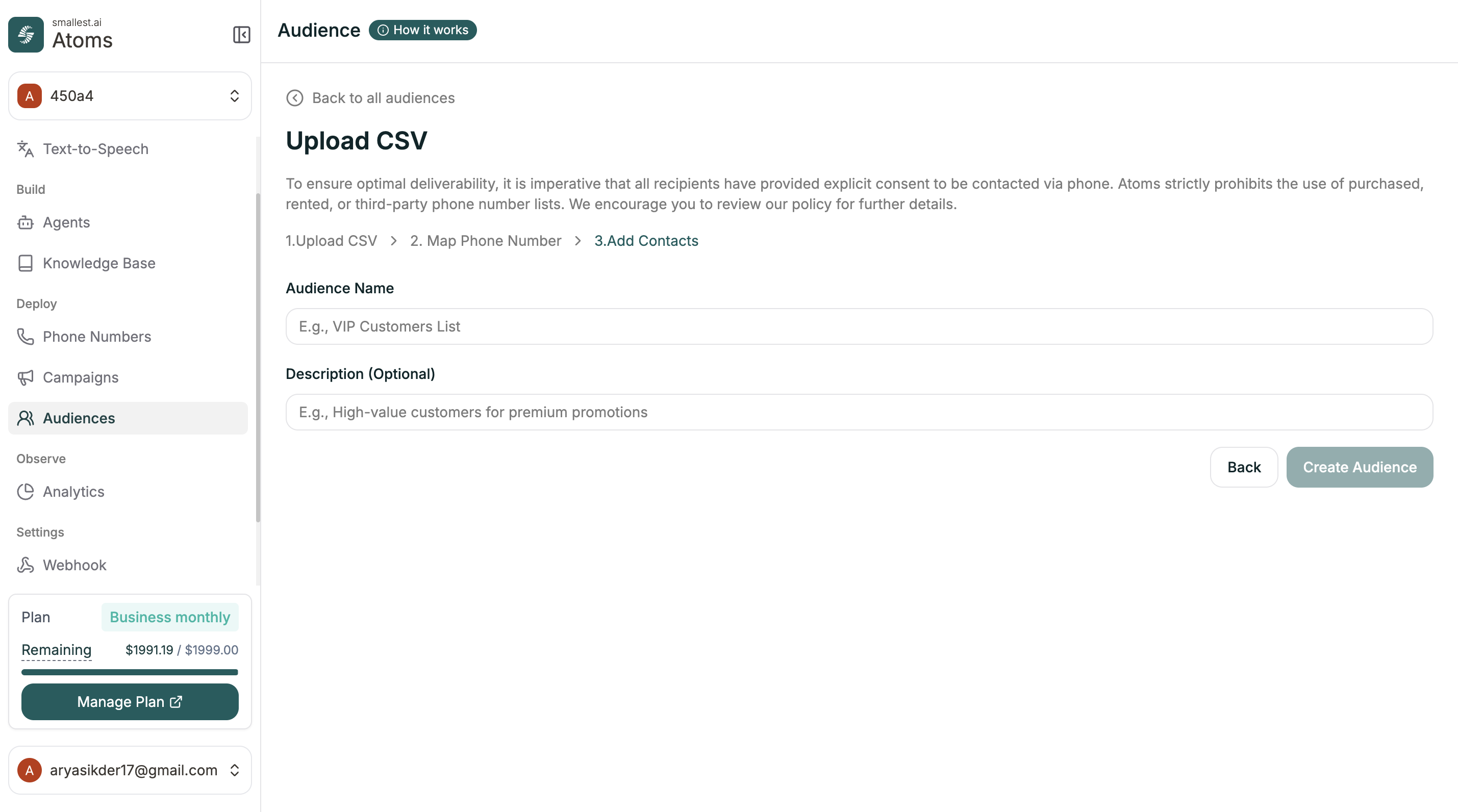
Managing Audience Members
Click any audience to view and manage its contacts.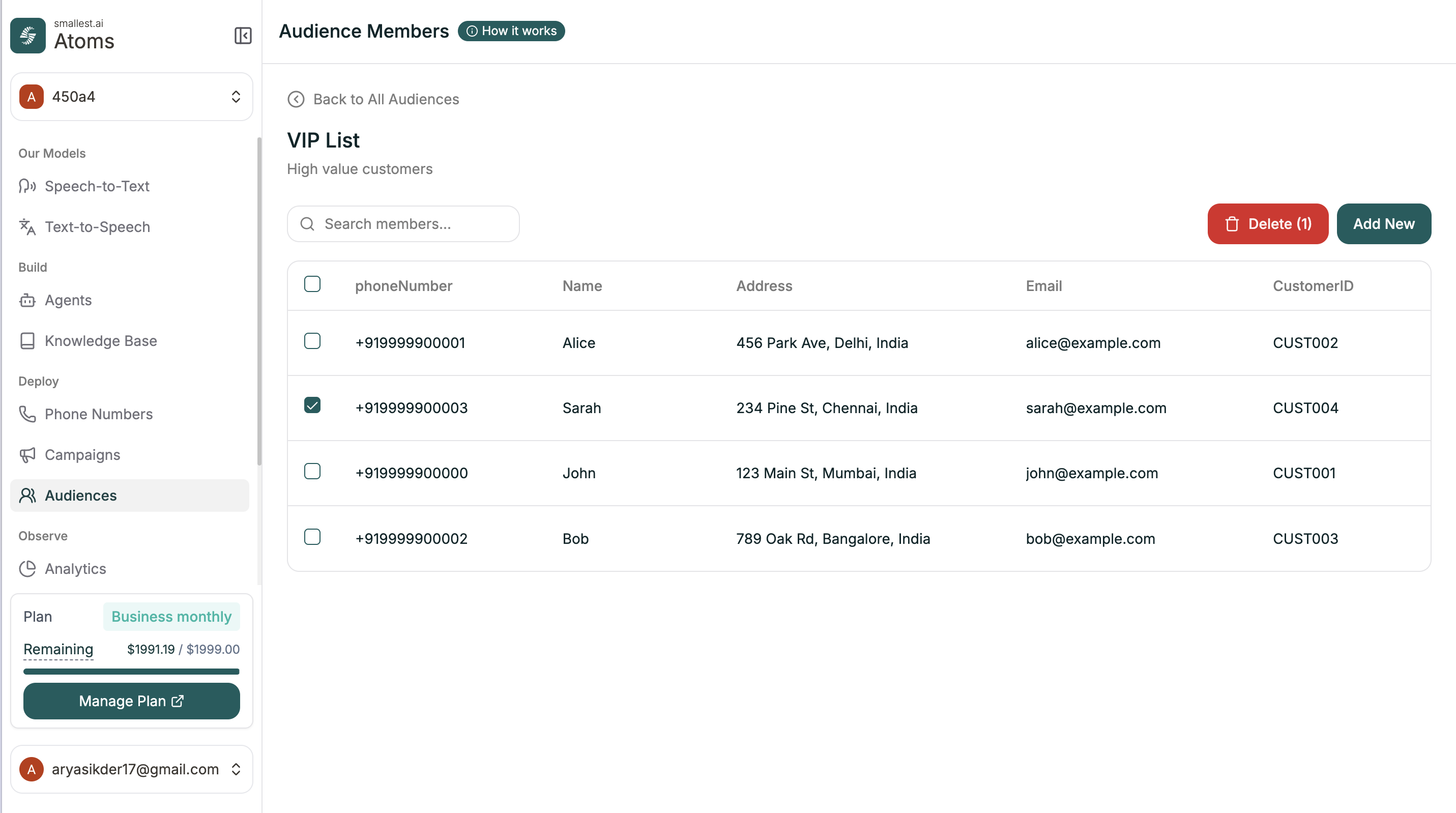
- Search for specific members
- Select contacts using checkboxes
- Delete selected contacts with the Delete button
- Add new contacts with the Add New button
Adding Members to Existing Audiences
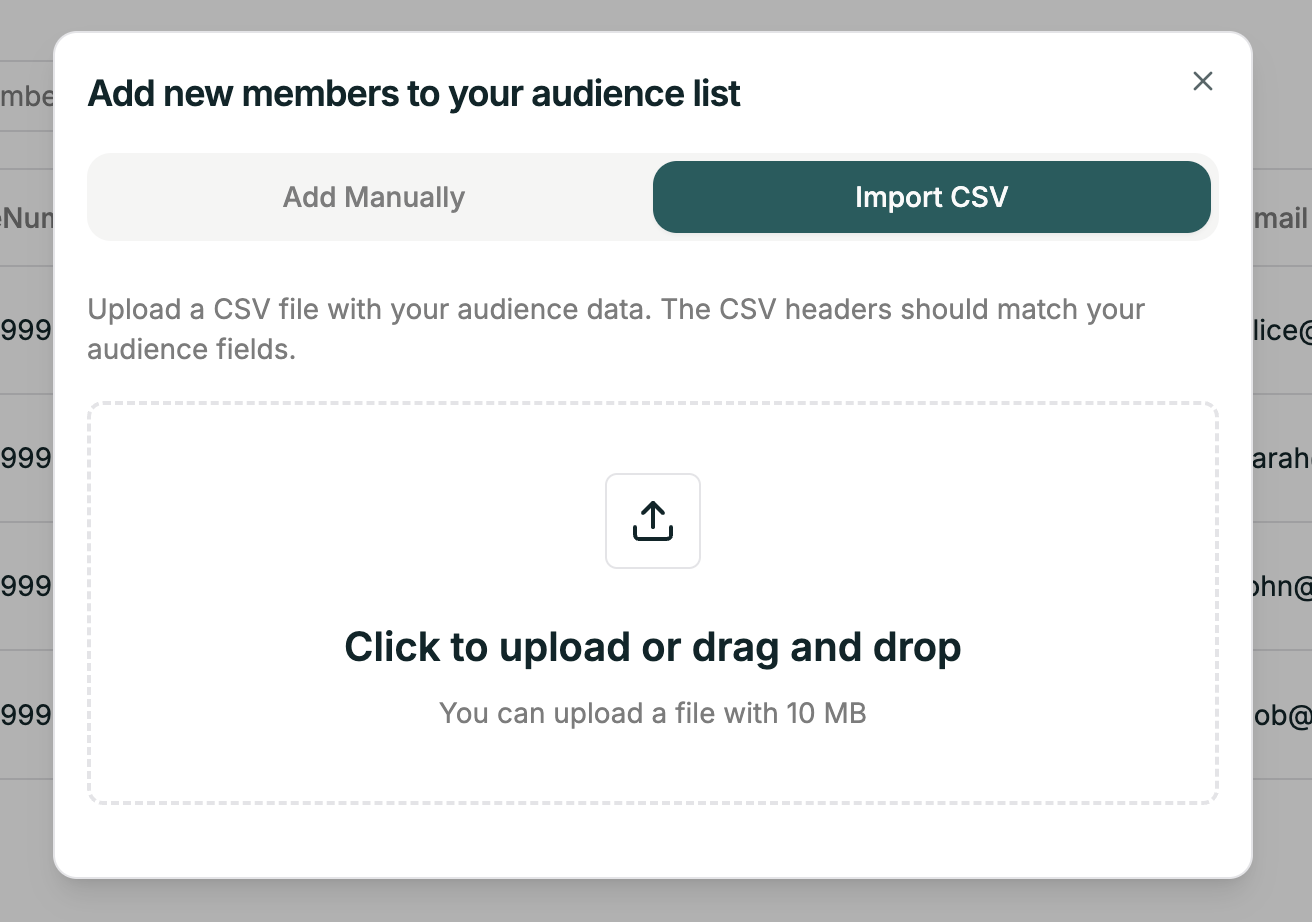
Click Add New to add contacts to an existing audience. You have two options:- Add Manually
- Import CSV
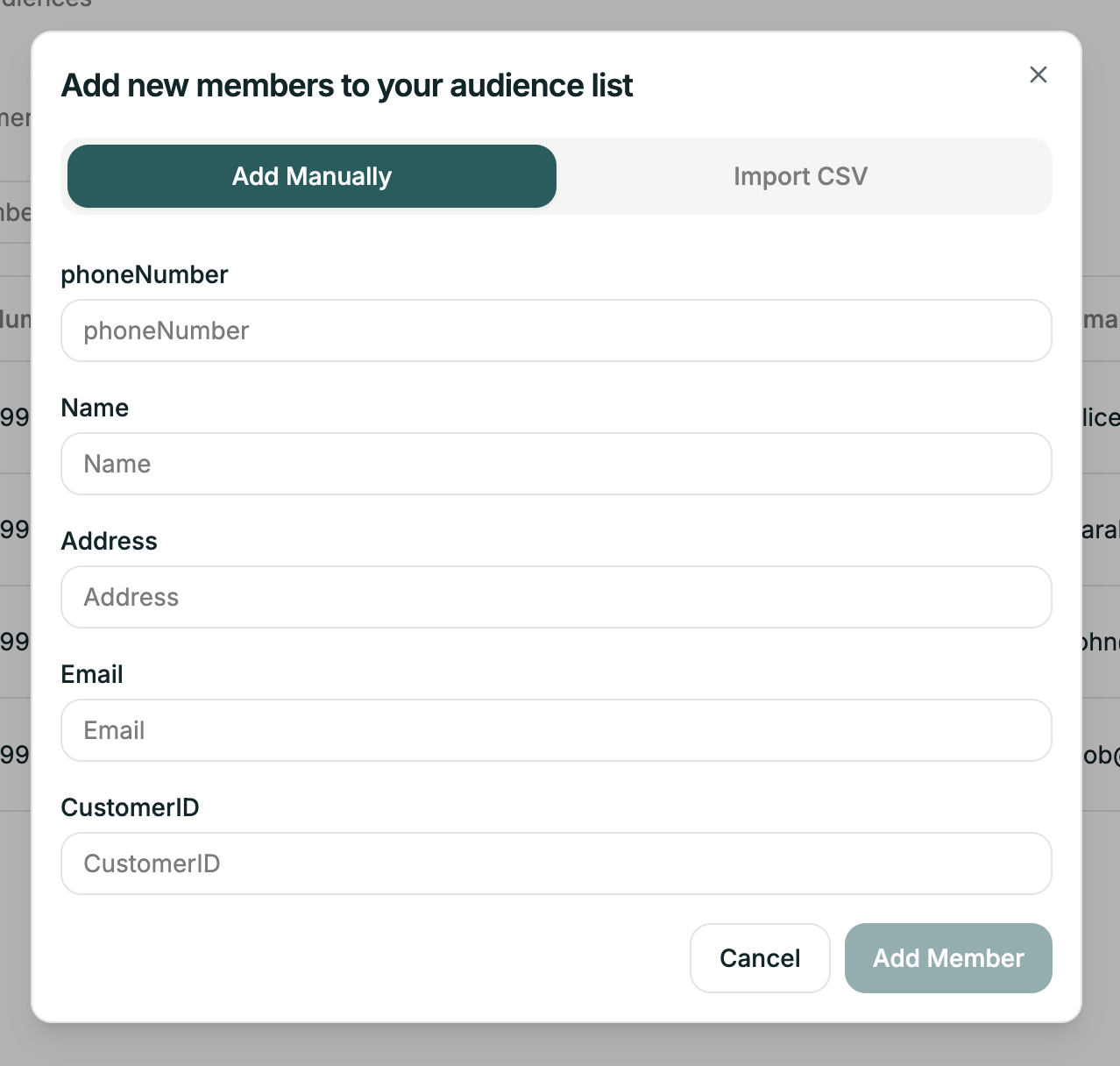
- phoneNumber (required) — in international format
- Plus any other fields defined in your audience
Using Audience Data in Calls
The columns you upload become available as variables during campaigns. If your CSV has a “Name” column, your agent can greet callers by name. See Variables for more.Related
Campaigns
Create outbound calling programs
Phone Numbers
Manage your phone numbers